TechInformer
Follow on Google
  • Latest
  • AI
  • Smartphones
  • Gadgets
  • Apps
  • Telecom
  • Startups
  • Security
  • Gaming
  • Reviews
  • How To
No Result
View All Result
  • Latest
  • AI
  • Smartphones
  • Gadgets
  • Apps
  • Telecom
  • Startups
  • Security
  • Gaming
  • Reviews
  • How To
No Result
View All Result
TechInformer
No Result
View All Result
Home Smartphones

How To Transfer All Your Data From Android To iPhone

by TechInformer Desk
October 10, 2024
in Smartphones, Apps, How To
Reading Time: 3 mins read
A A
How To Transfer All Your Data From Android To iPhone

Source: Apple Support

3 min readAdd TechInformer as a preferred source on Google

Earlier this year, Apple launched the iPhone 16 series, which has brought colossal additions to its range. No doubt the new launch has grabbed everyone’s attention. While some iPhone users upgraded to the newly launched iPhone 16, many Android users also switched to iOS.

Transferring data from one Android device to another Android is easy, but transferring data from an Android to an iPhone can be a hassle.  However, there’s no need to worry! By following these simple steps you will be able to easily transfer your data to iOS. 

Before you start, make sure that your phone has at least 75% charge. It’s normal for your phone to heat up and drain its battery more quickly when transferring large amounts of data. 
Oppo Find X10 Sale on October 29: Price, Offers, SpecsAlso readOppo Find X10 Sale on October 29: Price, Offers, Specs

Ensure that your new iOS device can accommodate all the stuff you’re uploading, including the files on your external Micro SD card. Additionally, confirm that your WiFi is active.

Methods To Transfer Data

By following these two methods, you can transfer your data from Android to iPhone. 

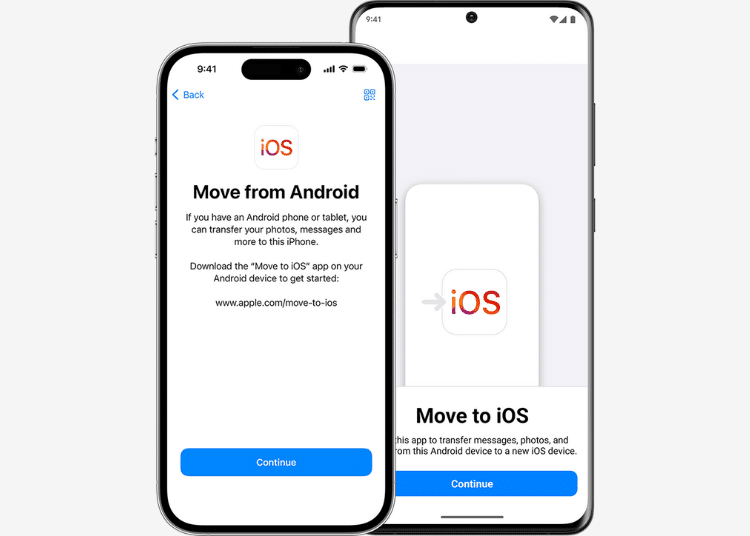
  • Move to iOS: Apple provides a specialised ‘Move to iOS’ app for those transitioning to an iOS device, enabling users to wirelessly transfer their data.
  • Transfer data Through Google account: Users can use Gmail to transfer data through the cloud. 

Transfer Data Through Move To iOS 

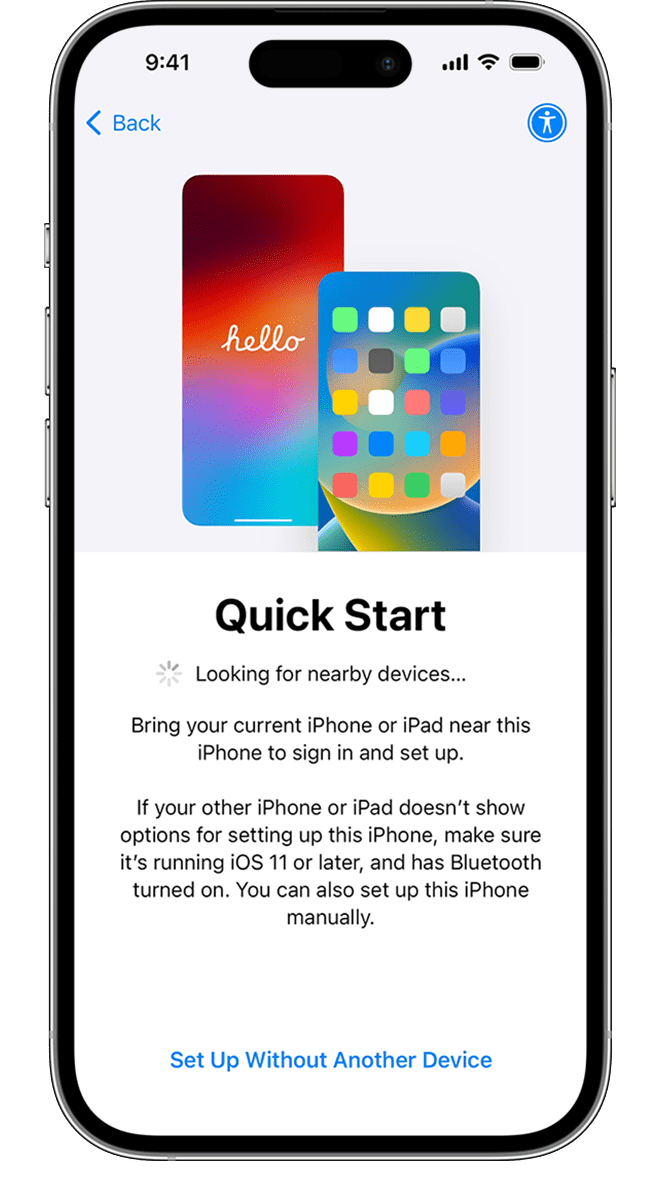
Start on your Apple device: First turn on your iOS device and place it near your Android device. After this follow the on-screen setup instructions on your iPhone. To continue, choose ‘Set Up Without Another [Apple] Device’ from the Quick Start screen and follow the onscreen instructions to proceed.
How To Transfer All Your Data From Android To iPhone
Source: Apple Support

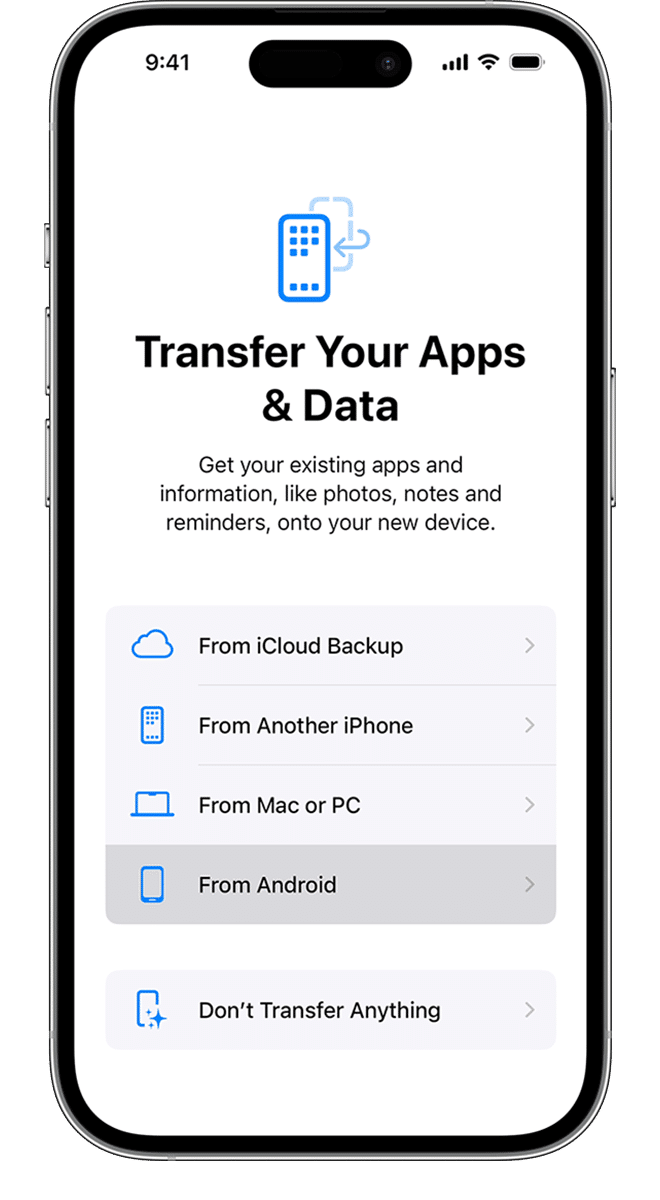
Tap Move Data from Android: Look for the Transfer ‘Your Apps and Data’ screen, then select ‘From Android.’
How To Transfer All Your Data From Android To iPhone
Source: Apple Support

Set up the Move to iOS app: Open the Move to iOS app on your Android device. If you don’t have the app installed, tap the QR code button on your new iOS device and scan the QR code with your Android device to access the Google Play Store. 

To start using the app: To start the app tap continue. Then read the terms and conditions, then tap Agree to continue. After this, tap Automatically Send or Don’t Send to choose how to share app data with Apple. Next, select Continue and grant access to Location if required. Select Continue and grant Notification permissions if necessary.

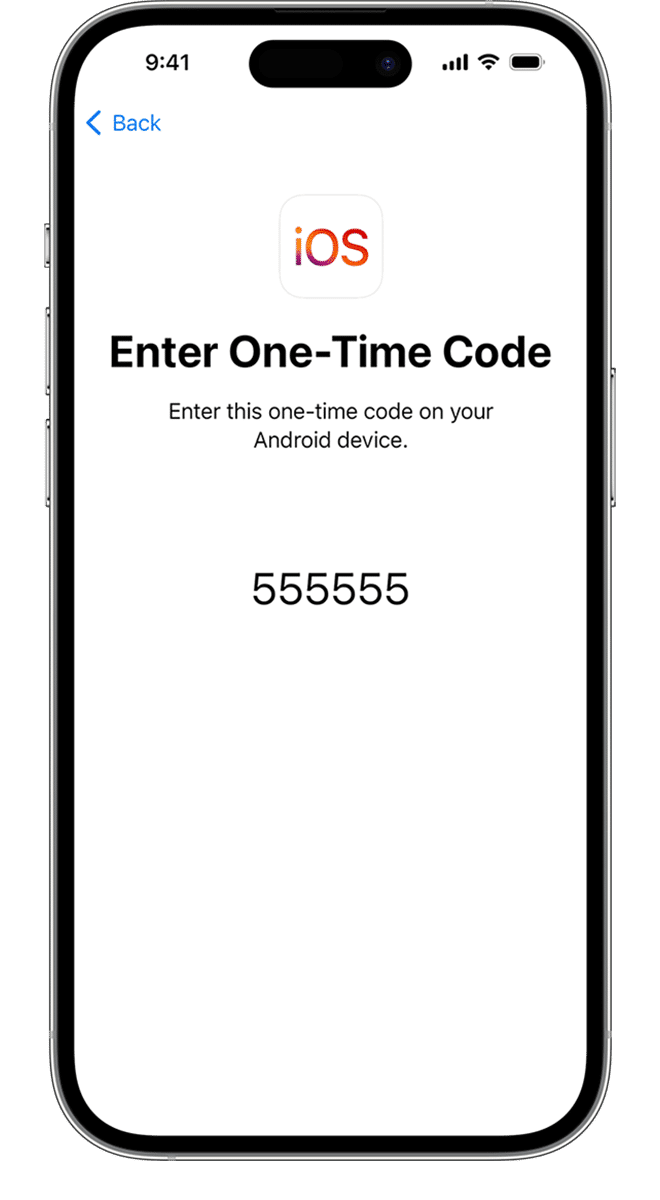
Use the code: On your iOS device, tap ‘Continue’ when the ‘Move from Android’ screen appears, then wait for the code to be displayed. After that enter the code on your Android device.
How To Transfer All Your Data From Android To iPhone
Source: Apple Support

Connect to a temporary Wi-Fi network: The iOS device will create a temporary Wi-Fi network. Join that network on your Android device. 

Transfer your data: Select the files, content, or data on your Android device that you want to transfer and tap Continue. Keep your phones near each other while the transfer is processing. 

Transfer Data Through A Google Account 

Enable backup on your Android: Find the Google tab, tap on Backup, and enable the categories you want to sync across devices.

Sync your Google account: To sync your Google account with your iPhone, go to Settings > Mail > Accounts > Add Account, and enter your Gmail credentials. Your Google account data will then sync with the iPhone and start importing automatically.

Found this useful?

Share it with your friends

See more TechInformer stories on Google

Add us as a preferred source and our stories will show up more often in your Top Stories.

Add TechInformer as a preferred source on Google
WhatsAppLinkedInXFacebookEmail
Tags: AndroidDataiPhone

Related Posts

how to check SIM cards in your name: a selection of mobile SIM cards
How To

How to Check How Many SIM Cards Are in Your Name

October 27, 2026
Oppo Find X10 price in India: back of an Oppo Find X series phone (Find X8 pictured)
News

Oppo Find X10 Sale on October 29: Price, Offers, Specs

October 27, 2026
WordPress site hacked recovery: an old key resting on a laptop keyboard
How To

WordPress Site Hacked? A Step-by-Step Recovery Checklist

October 27, 2026
Diwali scams 2026: person checking messages on a smartphone
How To

Diwali Scams 2026: Fake UPI Refunds, OTP and Sale Link Frauds

October 27, 2026
Best phones Diwali 2026: a mobile phone shop in Delhi
Buying Guides

Best Phones for Diwali 2026 Under Rs 20,000, 30,000 and 50,000

October 27, 2026
iPhone Duo vs Galaxy Z Fold 8: iPhone Duo held open showing its home screen
Comparison

iPhone Duo vs Galaxy Z Fold 8: Price in India, Specs Compared

October 15, 2026
Next Post
Gemini Rolls Out New Home Screen Design For Android To Enhance User Experience

Gemini Rolls Out New Home Screen Design For Android To Enhance User Experience

Popular

Vivo Unveils X200 Series In India: Key Specs, Availability & Price

Vivo Unveils X200 Series In India: Key Specs, Availability & Price

December 12, 2024
Lost Your Android Phone? Here Is What To Do To Secure Your Sensitive Data

Lost Your Android Phone? Here Is What To Do To Secure Your Sensitive Data

September 3, 2024
What Is The iPhone 16 Series Price In India? Starting From ₹79,900

What Is The iPhone 16 Series Price In India? Starting From ₹79,900

September 18, 2024
Apple TV App Now Available For Android Users, Allowing Access To Exclusive Content

Apple TV App Now Available For Android Users, Allowing Access To Exclusive Content

February 13, 2025
Top Cool Snapchat Tricks You Should Know

Top Cool Snapchat Tricks You Should Know

September 4, 2024
Apple Is Developing A Smart Doorbell With Face ID Support: Report

Apple Is Developing A Smart Doorbell With Face ID Support: Report

December 23, 2024
Facebook Instagram Twitter LinkedIn Youtube

About Tech Informer

Focused on keeping new-age audiences informed about the ever-evolving world of technology, Tech Informer is the one-stop destination if you enjoy reading about the ongoing developments in the Tech world.

Navigation

  • Latest
  • AI
  • Smartphones
  • Gadgets
  • Apps
  • Telecom
  • Startups
  • Security
  • Gaming
  • Reviews
  • How To

Information

  • About Us
  • Contact Us
  • Privacy Policy

©2026 Copyright Tech Informer. RVCJ Digital Media Pvt Ltd

TechInformer

Tech news, smartphones, AI and gadgets in India, explained simply.

Topics

  • Latest
  • AI
  • Smartphones
  • Gadgets
  • Apps
  • Telecom
  • Startups
  • Security
  • Gaming
  • Reviews
  • How To

Company

  • About us
  • Contact us
  • Privacy policy
  • Advertise with us

Follow us on Google

Add TechInformer as a preferred source and see our stories more often in Top Stories.

Add as preferred source

© 2026 Tech Informer. RVCJ Digital Media Pvt Ltd.

Latest news · Sitemap

TECHINFORMER
No Result
View All Result
  • Latest
  • AI
  • Smartphones
  • Gadgets
  • Apps
  • Telecom
  • Startups
  • Security
  • Gaming
  • Reviews
  • How To

©2026 Copyright Tech Informer. RVCJ Digital Media Pvt Ltd