Key takeaways
- Biometric lock blocks fingerprint, iris and face authentication on your Aadhaar
- You need a mobile number registered with Aadhaar
- Lock it on the myAadhaar portal or the Aadhaar app with an OTP
- Unlock temporarily before bank KYC, ration or SIM verification
- Report AePS fraud on 1930 and contact UIDAI on 1947
You can lock your Aadhaar biometrics online through the myAadhaar portal or the Aadhaar app in about two minutes, using an OTP sent to your registered mobile number. Once locked, nobody can use your fingerprint, iris or face to authenticate your Aadhaar, which shuts the door on cloned-fingerprint frauds at Aadhaar-enabled payment points. You can unlock it temporarily whenever you need to give your fingerprint at a bank, ration shop or SIM store.
What Aadhaar biometric lock does
According to UIDAI’s FAQ on Aadhaar online services, biometric locking lets an Aadhaar holder lock and temporarily unlock their biometrics. Three types of biometric data are covered:
- Fingerprints
- Iris
- Face
After you lock them, no entity can carry out biometric Aadhaar authentication for your number by any means. If a bank, telecom shop or other agency tries, the system returns error code 330, which tells them your biometrics are locked. The lock stays on until you unlock it yourself.
 Also readFake Sale Scams in India: How to Spot Them and Report Fraud
Why you should lock your biometrics
Fraudsters have used fingerprints lifted from property registration papers, photocopies and other documents to make silicone copies. With a copied fingerprint and your Aadhaar number, they can try to withdraw money from your bank account through the Aadhaar Enabled Payment System (AePS) at a banking agent or micro ATM. You do not get an OTP for this, so the first sign is often a debit SMS.
A biometric lock blocks this route completely, because a fingerprint match is not even attempted while the lock is on. It costs nothing and you can reverse it in minutes.
What you need before you start
- Your 12-digit Aadhaar number.
- A mobile number registered with Aadhaar. UIDAI says this is essential for the service. If your number is not linked, you have to visit an Aadhaar enrolment centre first. Our guide on updating your Aadhaar mobile number and email explains the process.
- For the Aadhaar app: an Android phone on Android 9 or later, or an iPhone on iOS 16 or later.
How to lock Aadhaar biometrics on the myAadhaar portal
- Go to the UIDAI website and open Lock/Unlock Biometrics under Aadhaar services. This takes you to the myAadhaar portal.
- Log in with your Aadhaar number, fill in the captcha and enter the OTP sent to your registered mobile number.
- Select the option to lock biometrics.
- Read the note, tick the consent box and confirm.
- You will see a confirmation that your biometrics are locked.
The menu names on the portal change from time to time, but the service is always listed as Lock/Unlock Biometrics.
How to lock biometrics in the Aadhaar app
UIDAI’s new Aadhaar app also offers biometric lock and unlock, along with authentication history, mobile number update and e-Aadhaar download.
- Install the official Aadhaar app by UIDAI from the Play Store or App Store. Check the developer name before you install.
- Register by verifying your Aadhaar with an OTP and completing face authentication. Set a 6-digit PIN for the app.
- Open the app and choose Biometric lock/unlock from the services.
- Confirm the lock. The status should change to locked.
How to unlock Aadhaar biometrics when you need them
UIDAI gives you two choices once the lock is on:
- Temporary unlock: biometrics open for a short window so you can complete one task, after which they lock again on their own.
- Disable the lock: biometrics stay open until you lock them again.
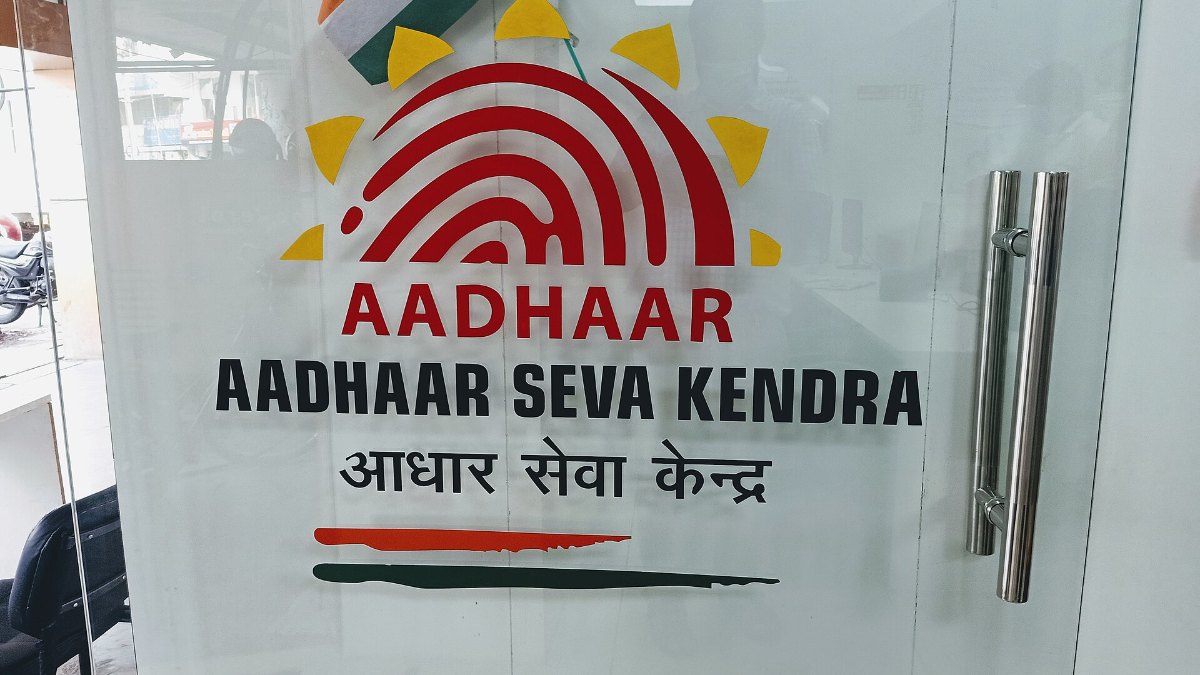
You can unlock through the UIDAI website, the Aadhaar app, an Aadhaar enrolment centre or an Aadhaar Seva Kendra. For most people the temporary unlock is the better choice. Do it just before you reach the counter, because the window is short.
When you will need to unlock
- Fingerprint-based eKYC at a bank branch or banking correspondent.
- Collecting ration under the Public Distribution System where fingerprint verification is used.
- Buying a new SIM or replacing one with biometric verification.
- Withdrawing cash yourself through AePS.
OTP-based Aadhaar verification is a separate method and is not part of the biometric lock.
Biometric lock vs Aadhaar number lock
UIDAI also lets you lock your entire Aadhaar number. This is a different feature. It stops every kind of authentication with your Aadhaar number, including biometric, demographic and OTP. After that, you can only authenticate using your latest Virtual ID (VID), and you need that VID to unlock the number again. It can be done through UIDAI’s SMS service with an OTP.
For most people the biometric lock is enough. The full Aadhaar number lock suits someone who rarely uses Aadhaar and is comfortable using a VID.
Check your Aadhaar authentication history
Locking stops future misuse, but you should also check whether your Aadhaar has been used without your knowledge. Both the myAadhaar portal and the Aadhaar app have an Authentication History option that shows when and how your Aadhaar was authenticated. Look for biometric entries you do not recognise, especially at times you were not at a bank or shop.
While you are at it, check how many mobile connections are registered in your name. Our guide on checking SIM cards in your name shows how.
What to do if money has already been taken
- Lock your biometrics right away so it cannot happen again.
- Call your bank, report the AePS transaction as unauthorised and ask for the transaction details in writing.
- Call the national cyber crime helpline 1930 or file a complaint at cybercrime.gov.in as soon as possible. Quick reporting improves the chance of freezing the money.
- For Aadhaar-related problems, call UIDAI’s toll-free helpline 1947.
Fraudsters also pose as police or bank officials to push people into sharing details. Our explainer on the digital arrest scam covers the warning signs.
Bottom line
Locking your Aadhaar biometrics takes a couple of minutes, costs nothing and removes the most common route for AePS fraud. Keep it locked, unlock it temporarily only when you need to give a fingerprint, and check your authentication history every few months.
Frequently asked questions
What happens when I lock my Aadhaar biometrics?
Nobody can use your fingerprint, iris or face for Aadhaar authentication. Any attempt returns error code 330, which shows the biometrics are locked.
Can I lock Aadhaar biometrics without a registered mobile number?
No. UIDAI says a registered mobile number is essential. If your number is not linked, visit an Aadhaar enrolment centre to add it first.
How do I unlock Aadhaar biometrics?
You can unlock temporarily or disable the lock through the UIDAI website, the Aadhaar app, an enrolment centre or an Aadhaar Seva Kendra.
Does biometric lock stop OTP-based Aadhaar verification?
No. The biometric lock only covers fingerprint, iris and face. OTP-based verification is separate. To block all authentication you would have to lock the Aadhaar number itself.
See more TechInformer stories on Google
Add us as a preferred source and our stories will show up more often in your Top Stories.
Add TechInformer as a preferred source on Google